
More games. One place to manage.
Give each game or account its own device, then view, switch and manage them together.
 Download for macOS
Connect to your cloud phone on a bigger screen with the macOS client. Manage games and accounts in one place while your games run in the cloud.
New here? Try it free and start gaming in the cloud.
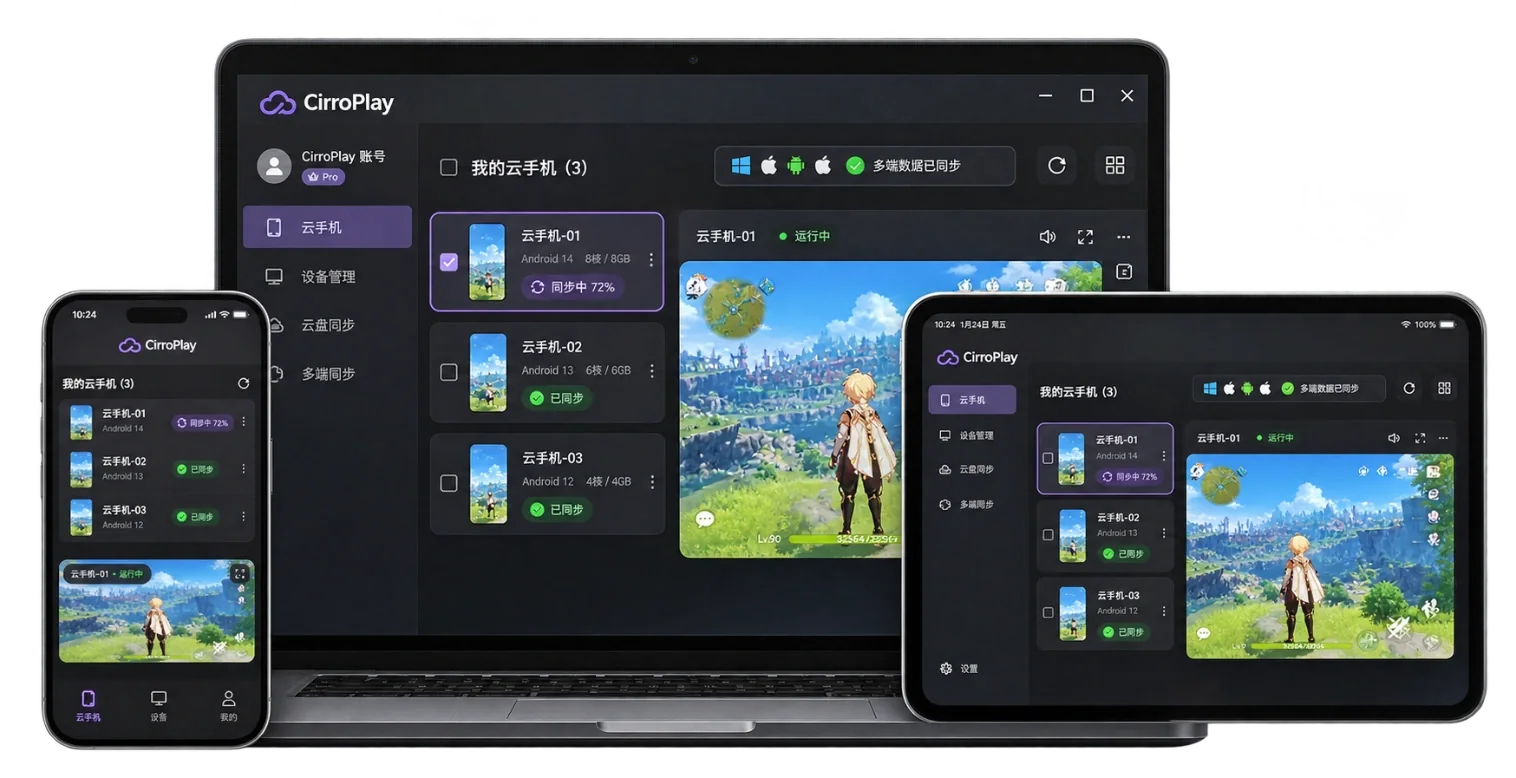
Use the download button on this page to get the CirroPlay installer for macOS.
Open the downloaded macOS installer, follow your device’s installation prompts, then sign in or create a CirroPlay account.
Choose an available cloud phone in your account and connect to its Android environment. Install a game or pick up your existing progress.
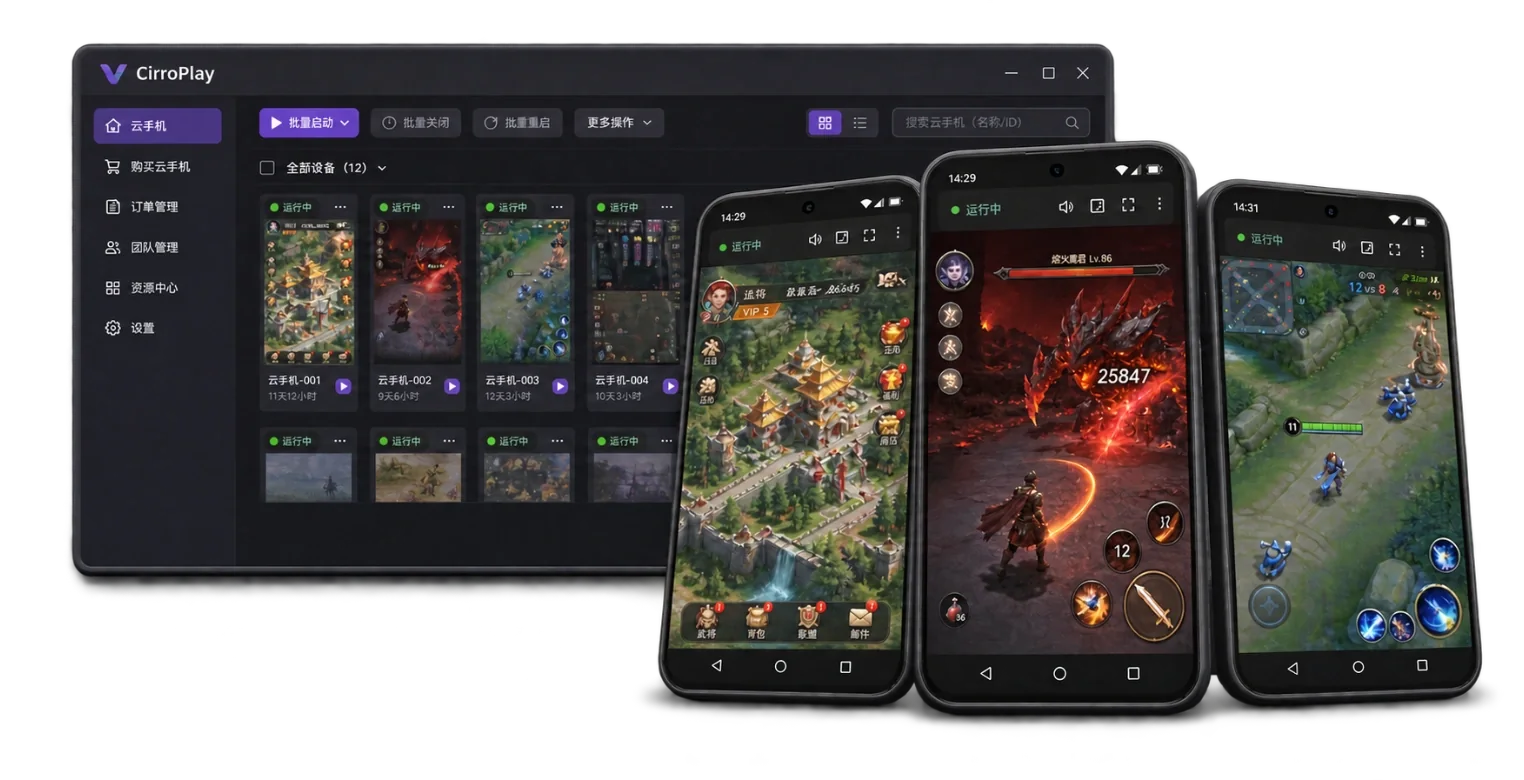
Give each game or account its own device, then view, switch and manage them together.
Leave the game in the cloud and check its progress remotely while your local device rests.
Connect to your cloud device from a computer or phone using a supported client.
Open the downloaded macOS installer, follow your device’s installation prompts, then sign in or create a CirroPlay account.
Yes. Open the CirroPlay web app in a supported browser and sign in with the same account to access your cloud phone.
The operation of the cloud Android environment does not rely on the local screen to be continuously turned on. However, the device is online, the game process is running, and the account remains connected are different states. The game's own mechanism, network, maintenance, and device expiration may affect the operation. Continuous operation does not mean automatic completion of tasks.
Choose the client that fits your setup or access your cloud phone directly on the web.
Sign up for free trial time and launch your first cloud phone today.
 Android
 Windows